
Requirements before getting started:
- User must have the privilege view work order management. To make this change, please read the tutorial "How to edit user privileges."
NOTE: Printing work orders can be done individually or in bulk.
Method 1: Print a single work order
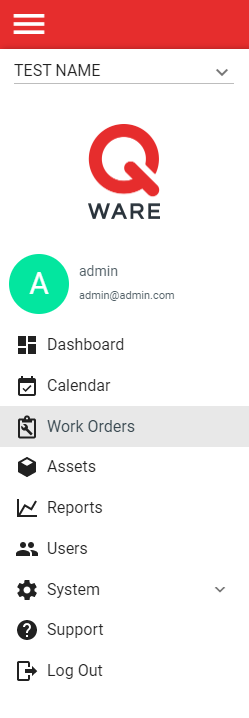
1. Log in to your Q Ware application and navigate to Work Orders.
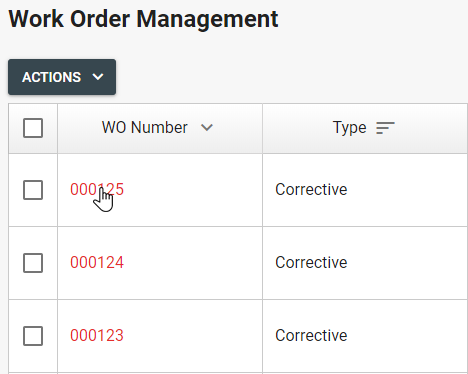
2. Click the work order number of the work order that needs to be printed.
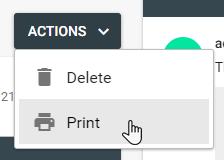
3. From the work order record, click the "Actions" button and select "Print."
Method 2: Print multiple work orders
1. Log in to your Q Ware application and navigate to Work Orders.
2. Click the check box for each work order that needs to be printed.
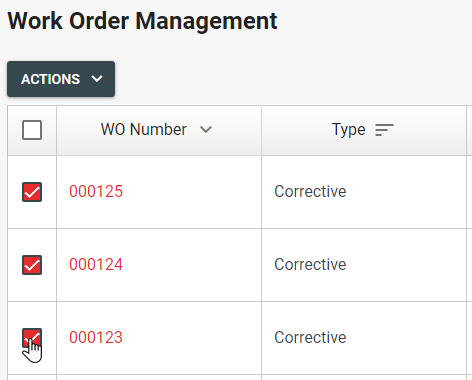
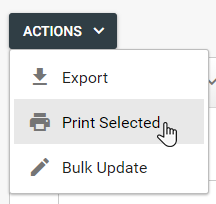
3. Click the "Actions" button and select "Print Selected."
Comments
0 comments
Please sign in to leave a comment.