
Requirements before getting started:
- User must have the privilege to create new work orders. To make this change, please read the tutorial "How to edit user privileges."
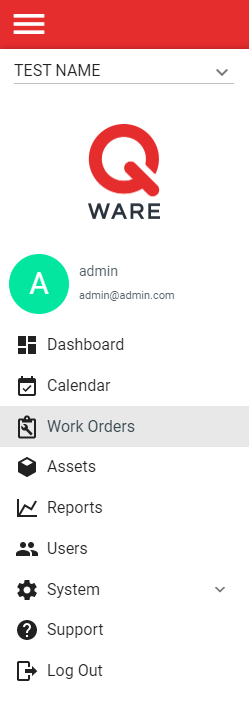
1. Log in to your Q Ware application and navigate to Work Orders. If the user doesn't have the privilege to view work orders, there will be an option to "Create Work Order" in the menu. In this case, skip to step 3 after clicking.
2. From the work order management interface, click the red create button at the bottom right hand side of the screen.

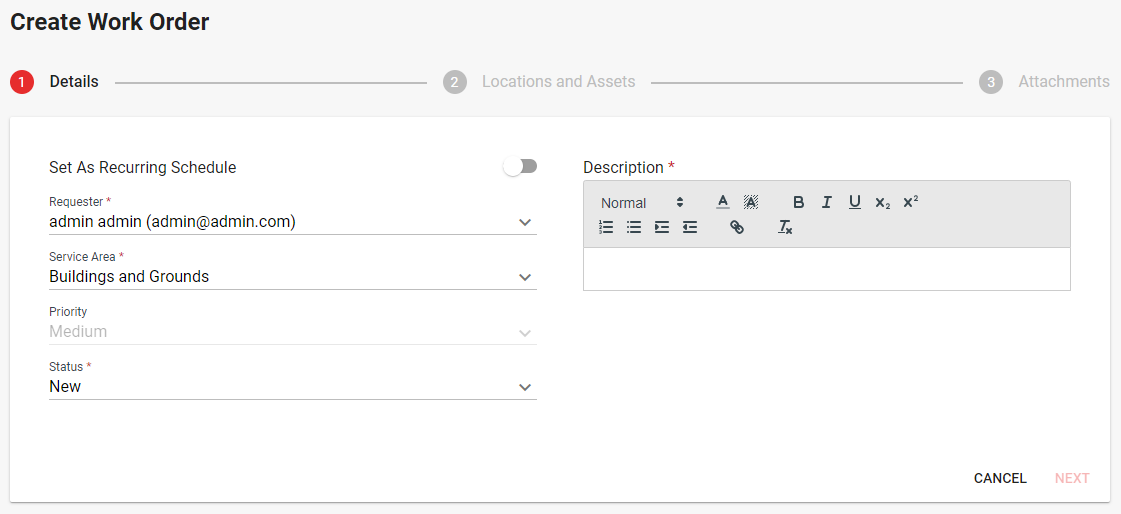
3. Complete each step of the work order create form. Make sure to fill in all required fields. There are 3-5 steps depending on if the form has been customized and whether or not the work order requires a schedule. The steps include:
- Details - the general details of the work order
- Locations and Assets - the locations and/or assets the work order is in reference to
- Additional Information (if customized) - the custom fields related to the work orders selected status
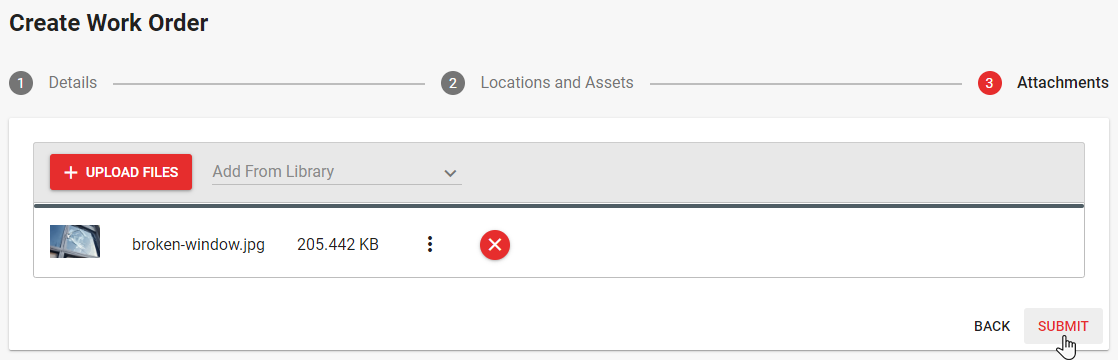
- Attachments (optional) - the images and documents related to the work order
- Schedule (required for schedules) - the recurrence rules for the work order's schedule
4. When complete, click submit to create the work order and return to the work order management interface.
Comments
0 comments
Please sign in to leave a comment.