
Requirements before getting started:
- At least one service area must exist. To create service areas, please read the tutorial "How to create service areas."
- User must have the privilege to manage asset categories. To make this change, please read the tutorial "How to edit user privileges."
NOTE: Custom layouts can be applied to asset categories. Each asset in a category is given the custom fields from the assigned layout.
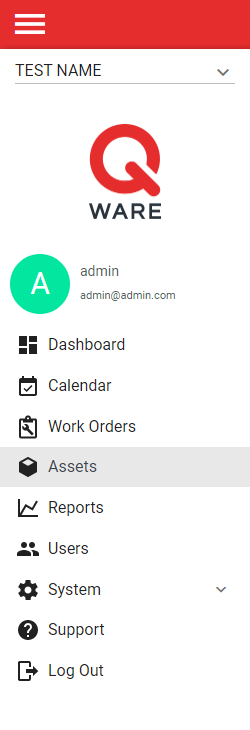
1. Log in to your Q Ware application and navigate to Assets.
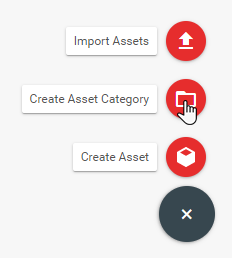
2. From the asset management interface, click the red create button at the bottom right hand side of the screen.

3. Select "Create Asset Category" from the popup menu.
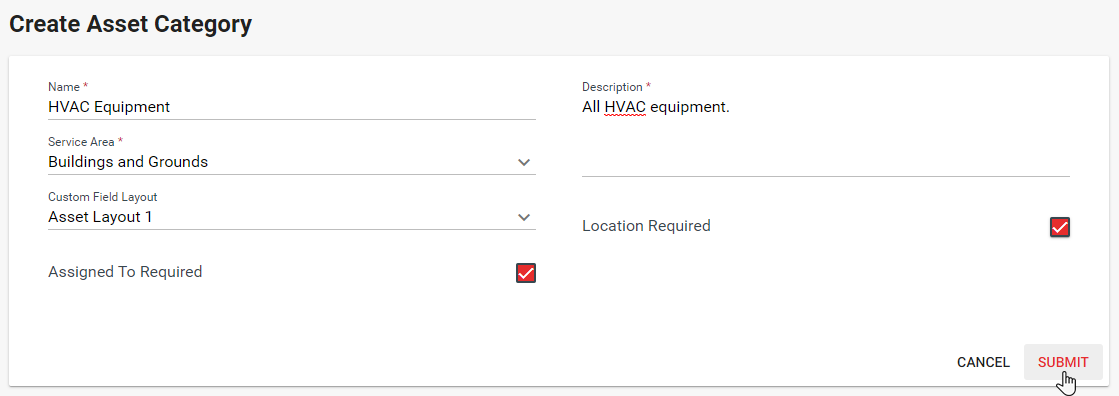
4. Complete each step of the asset category create form. Make sure to fill in all required fields. Asset categories require a name, a service area, and a description. Custom field layouts can be assigned to the category. Layout fields will be applied to all assets in the category. The assigned to field and location field of asset records can also be set as required to create assets in this category.

5. When complete, click submit to create the asset category and return to the asset management interface.
Comments
0 comments
Please sign in to leave a comment.