
Requirements before getting started:
- User must have the privilege to manage location types. To make this change, please read the tutorial "How to edit user privileges."
NOTE: Location types create your organizations location hierarchy. An infinite number of hierarchy levels can be created. For optimal performance, hierarchies of 4 levels or less are recommended.
Ex. 
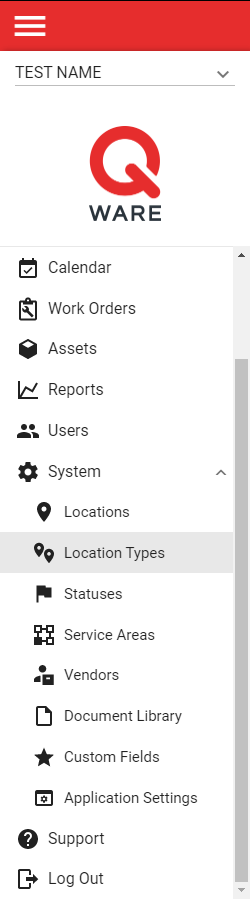
1. Log in to your Q Ware application and navigate to System -> Location Types.
2. From the Location Type Management interface, click the red create button at the bottom right hand side of the screen.

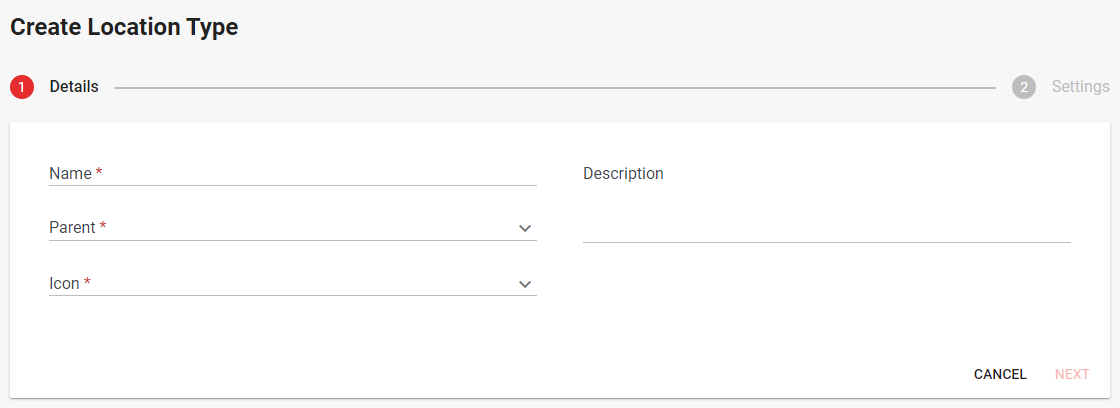
3. Complete each step of the location type create form. Make sure to fill in all required fields. Location types require a name, a parent location type or must be set as having no parent, and an icon to represent locations of this type.
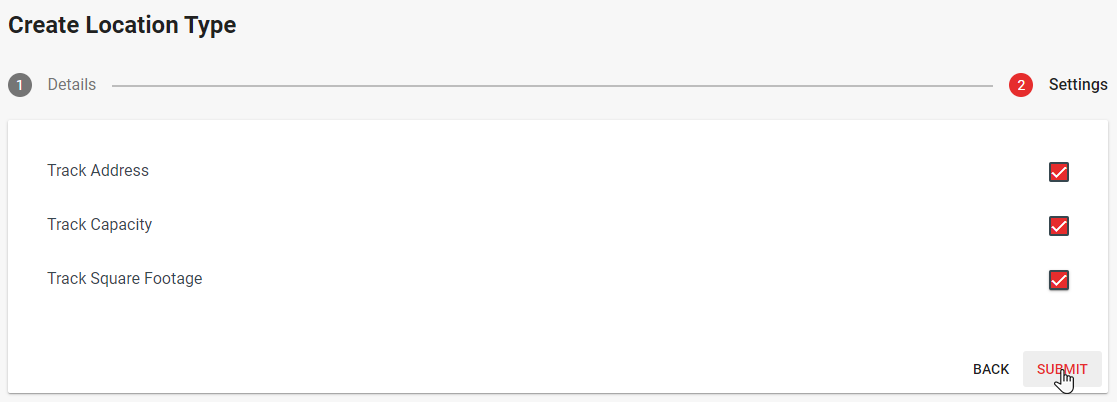
The settings step allows you to turn on fields to track the address, capacity, and square footage of locations created as this type.
4. When complete, click submit to create the location type and return to the location type management interface.
Comments
0 comments
Please sign in to leave a comment.